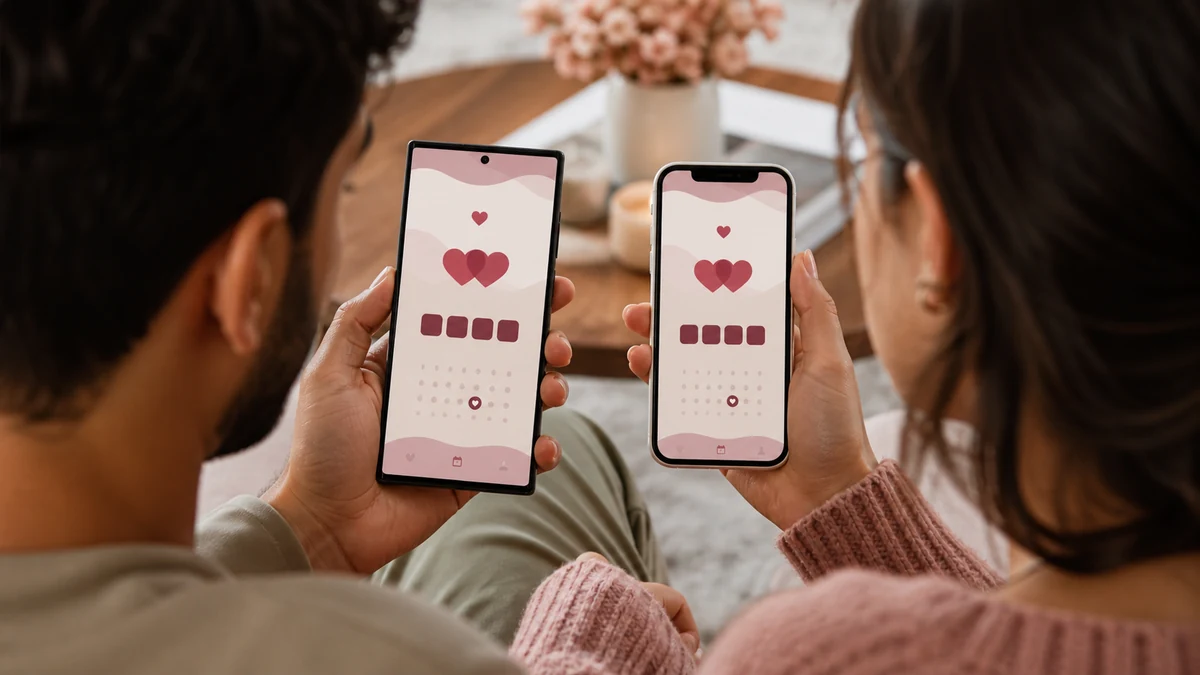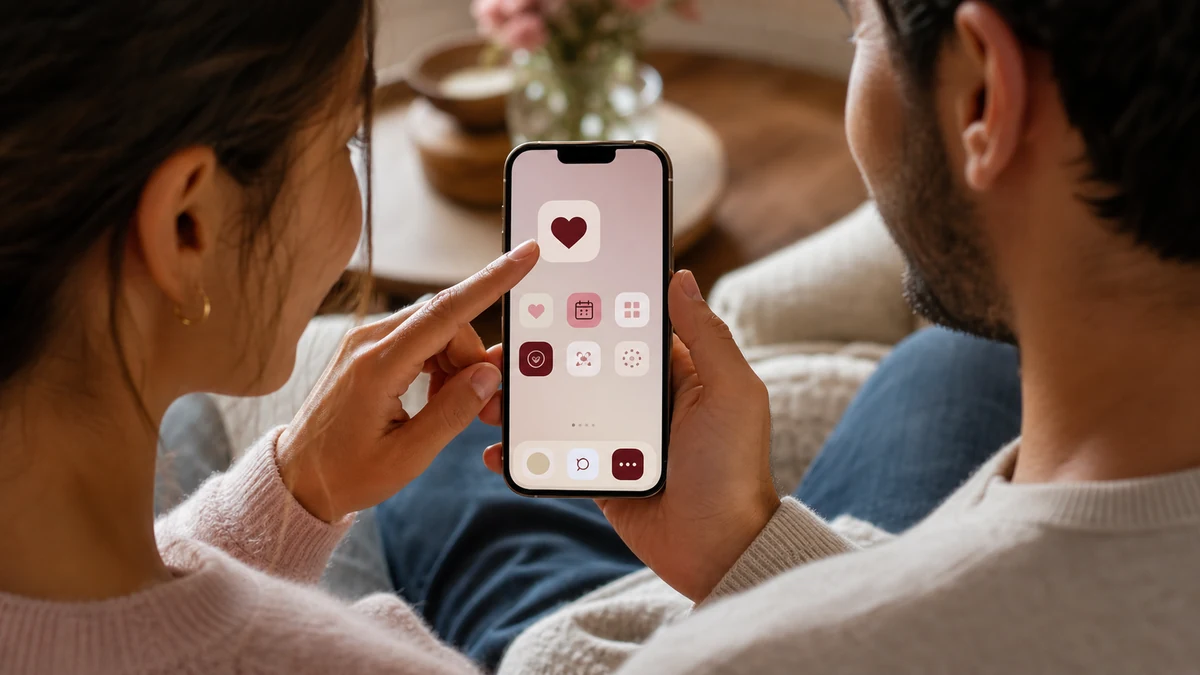
Your Love Counter is most enjoyable when it is one tap away. The good news is that you can add it to any home screen, on iPhone, Android, or desktop, without visiting an app store. This short, step-by-step guide walks you through each platform so your count is always within reach.
Key Takeaways
- You can add the Love Counter to any home screen in under a minute.
- No app store download is required on any platform.
- The icon opens straight to your saved counter.
- Your details stay private on your own device.
Before You Start
First, set up your counter. Open the Love Counter, enter your names and start date, add a time if you like, and press start. Because your details are saved on your device, the home screen icon you create will open right to your personalized count every time. With that done, pick your device below.
On iPhone and iPad (Safari)
Adding the counter on an Apple device takes a few taps:
- Open the Love Counter in the Safari browser.
- Tap the share button, the square with an upward arrow, at the bottom or top of the screen.
- Scroll down and tap Add to Home Screen.
- Adjust the name if you wish, then tap Add.
An icon now sits on your home screen and opens the counter like an app.
On Android (Chrome)
The Android process is just as quick:
- Open the Love Counter in Chrome.
- Tap the three-dot menu in the top right corner.
- Choose Add to Home screen or Install app.
- Confirm the name and tap Add.
The icon appears on your home screen, ready to launch your saved counter. Our guide comparing the counter on Android and iPhone covers how the experiences match up.
On Desktop (Chrome or Edge)
You can pin the counter on a computer too:
- Open the Love Counter in Chrome or Edge.
- Click the menu, then look for Install or Create shortcut.
- Confirm, and an icon is added to your desktop or app launcher.
Now your counter opens in its own tidy window, one click away whenever you sit down.
A Few Handy Tips
Place the icon somewhere you will see it, so glancing at your count becomes a natural daily habit. If you share a device, remember that the counter loads whichever details were last saved, so use the reset button if you need a clean start. And if you want to feature your count on a website rather than a home screen, see our guide to adding a love counter to a website.
A Note on Privacy
Adding the counter to your home screen does not send your information anywhere. Your names and date remain stored locally on that device alone. The icon is simply a convenient shortcut to the same private tool you already trust. Set it up once, and your growing love story will always be a single tap away. Open the Love Counter to get started.
Start Counting Your Days in Love
Turn your special date into a live count you will treasure. Free, private, and ready in seconds.
Frequently Asked Questions
Open it in Safari, tap the share button, choose Add to Home Screen, then tap Add. An icon appears that opens straight to your saved counter.
Open it in Chrome, tap the three-dot menu, choose Add to Home screen or Install app, and confirm. The icon then launches your saved counter.
No. On every platform, adding the counter to your home screen creates a shortcut without any app store download, and your details stay private on your device.